> ## Documentation Index
> Fetch the complete documentation index at: https://openmetadata-fix-release-notes.mintlify.site/llms.txt
> Use this file to discover all available pages before exploring further.
# Configure the Data Insights Report
> Set up email-based delivery of data insight reports for stakeholders and teams.
# Configure the Data Insights Report
Once the data insights ingestion has been set up, you can proceed to configure the email report for Data Insights.
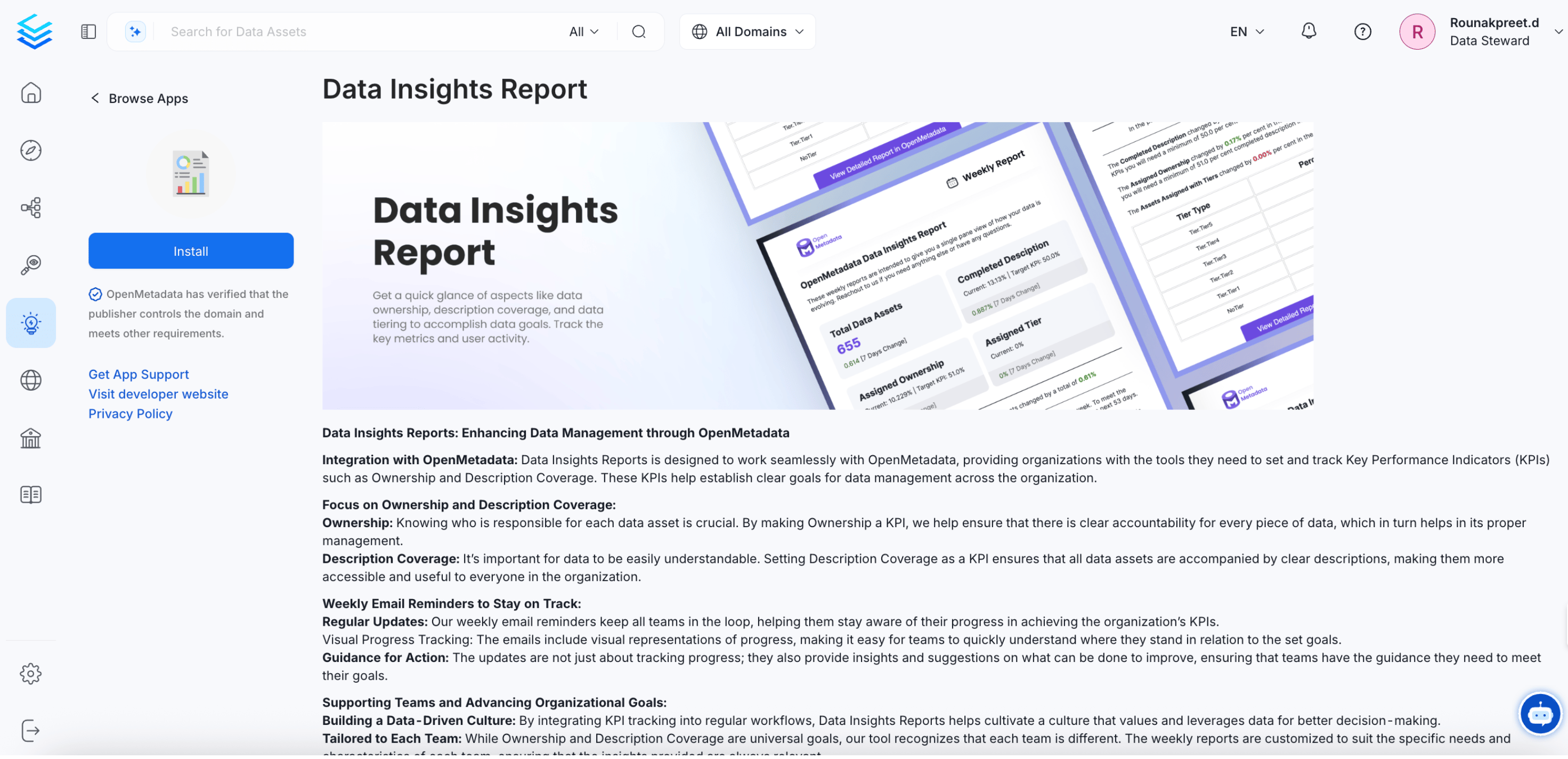
* Navigate to **Settings >> Applications >> Add Apps** and install the **Data Insights Report**
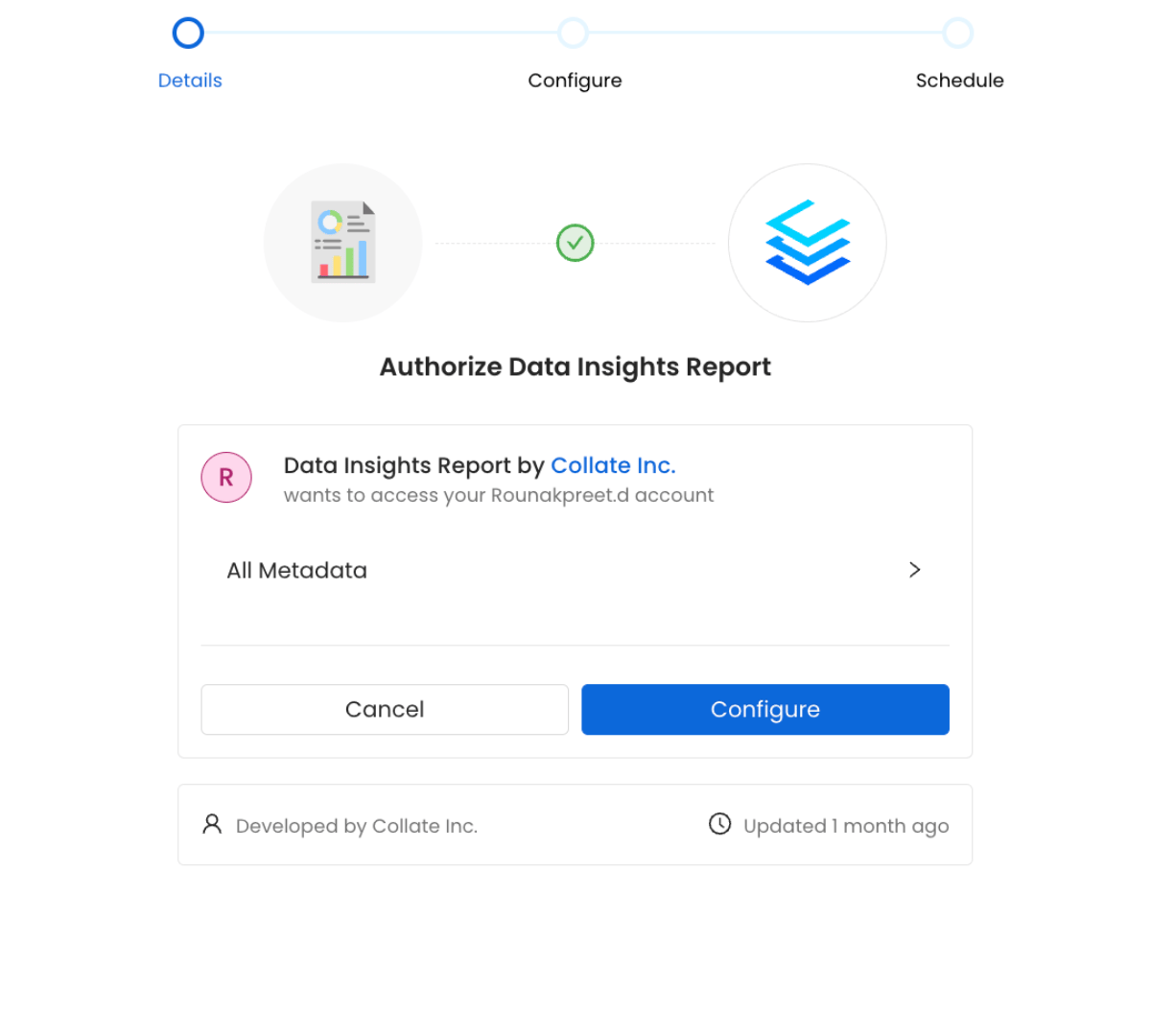
 * Authorize and configure the data insights report.
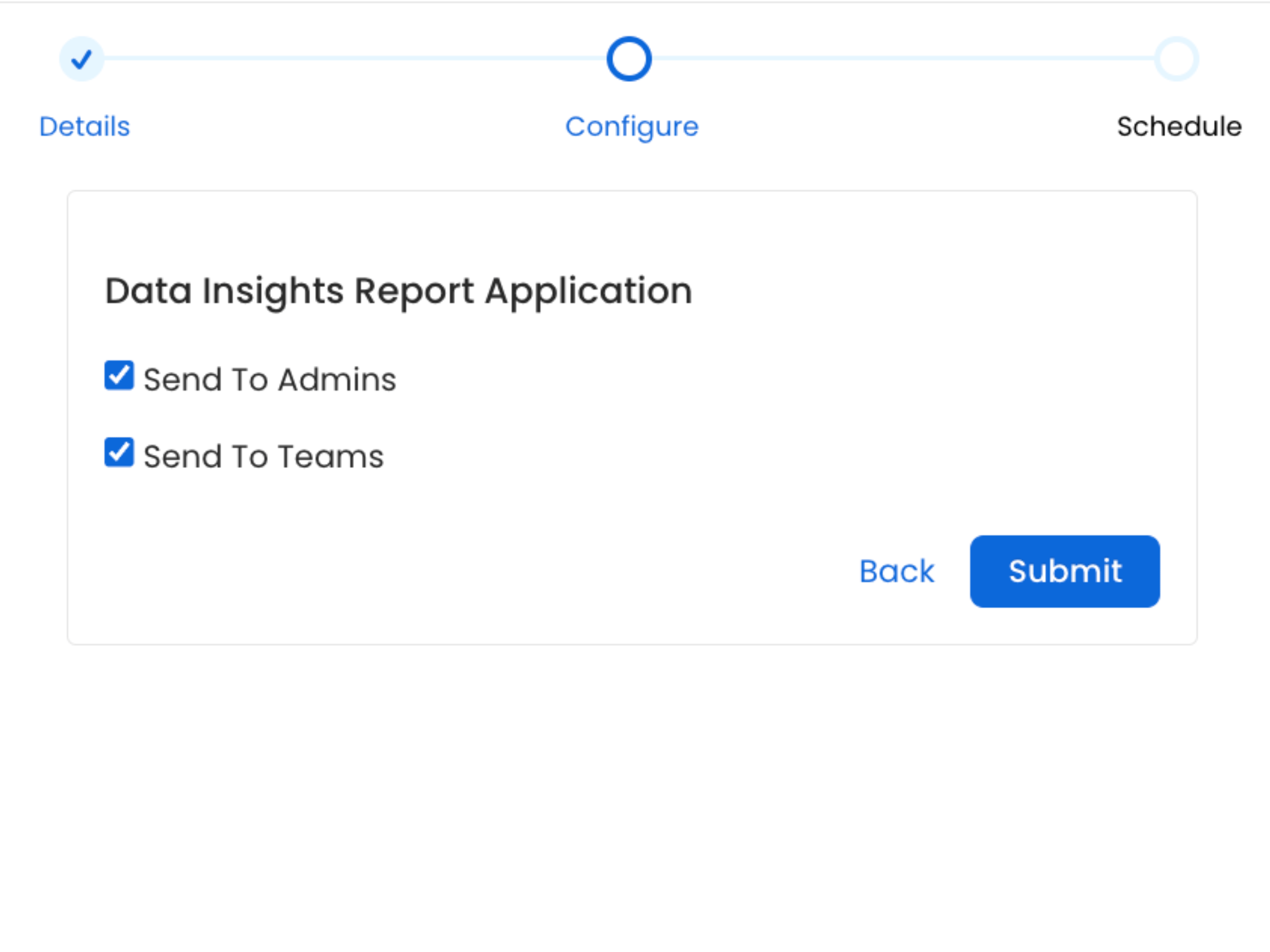
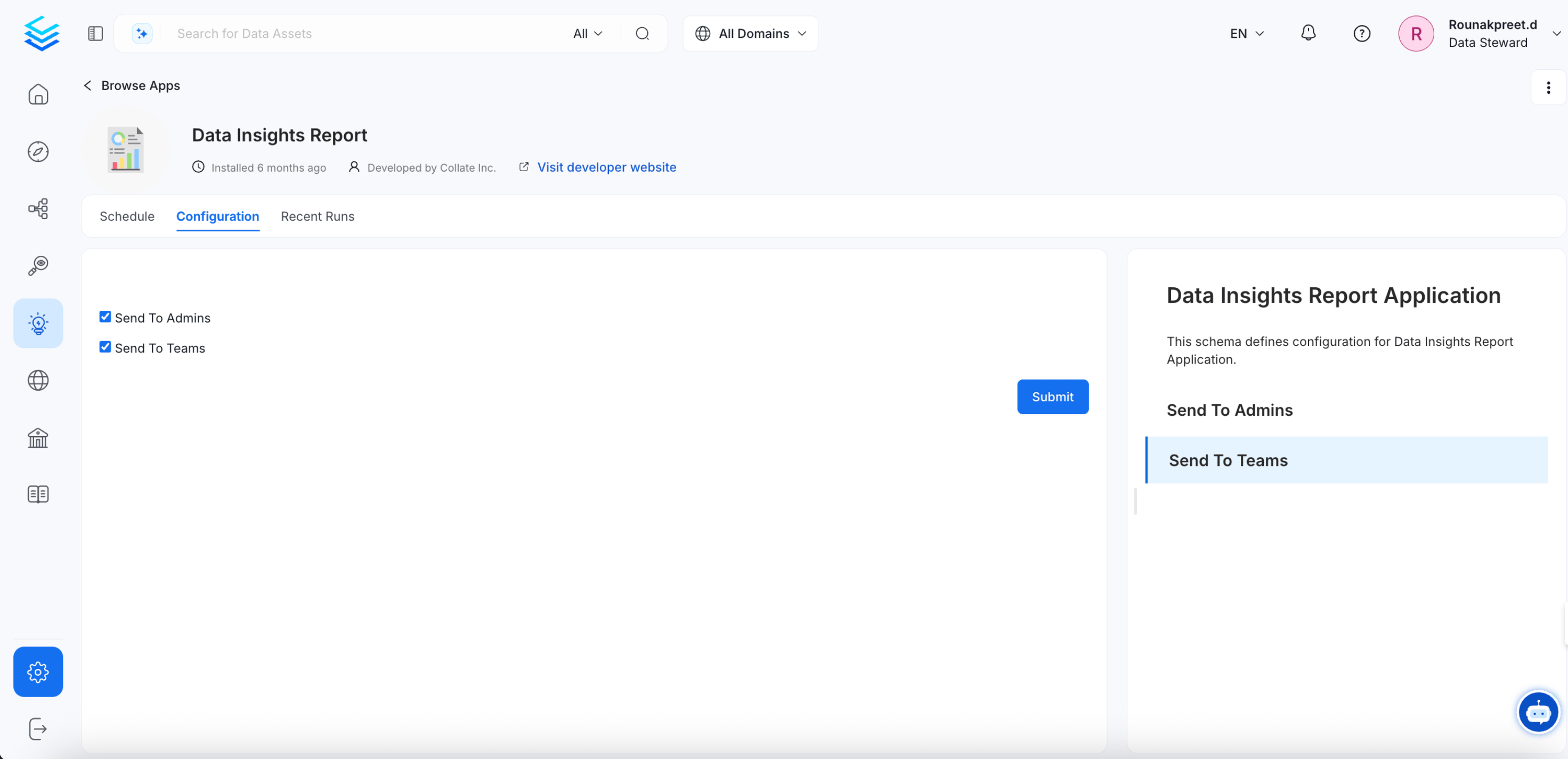
 * Configure the report to send to Admins as well as Teams.
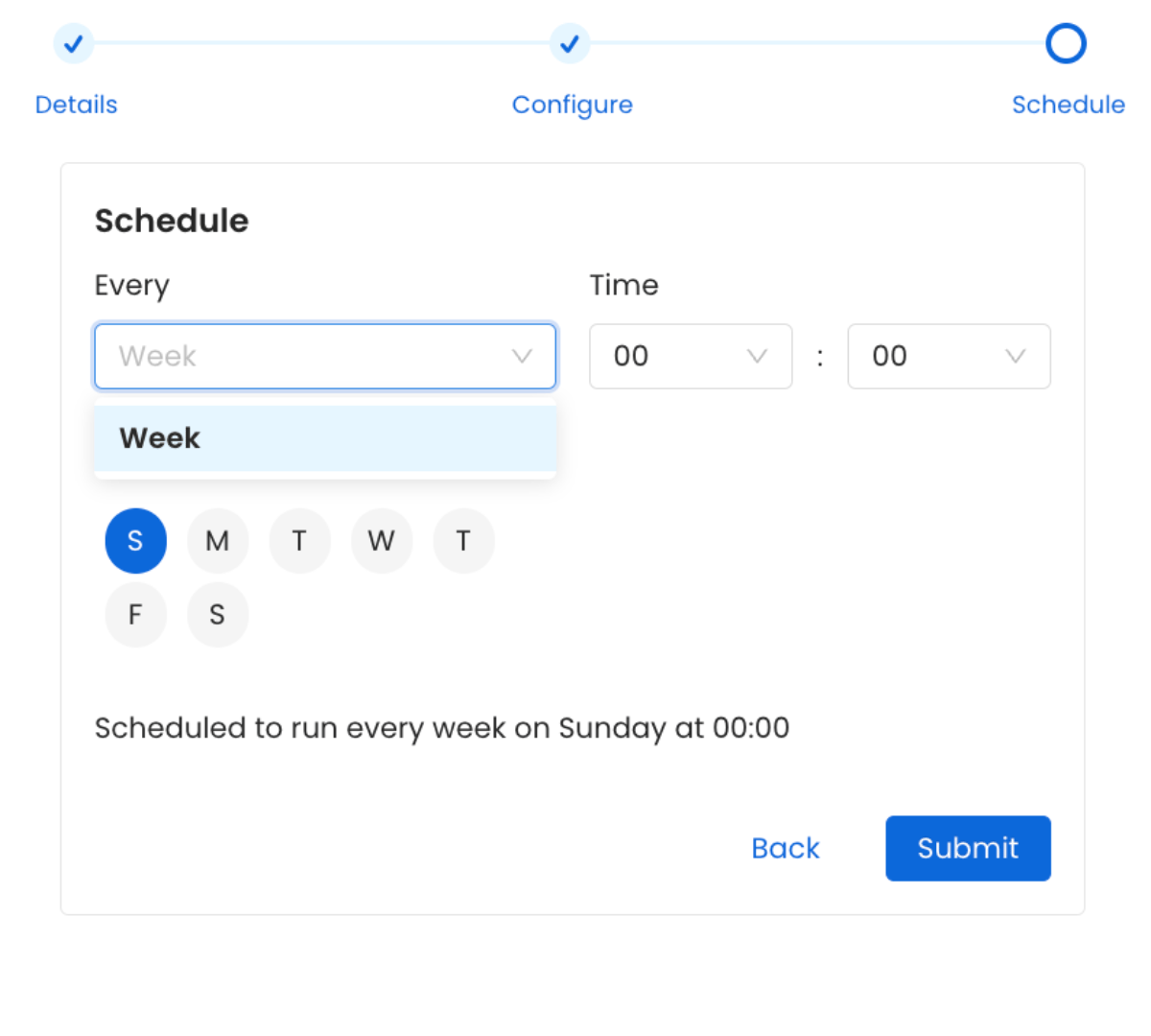
 * Schedule the emails to be sent at the desired frequency. Click on **Submit**.
 * The Data Insights Report has been configured successfully.
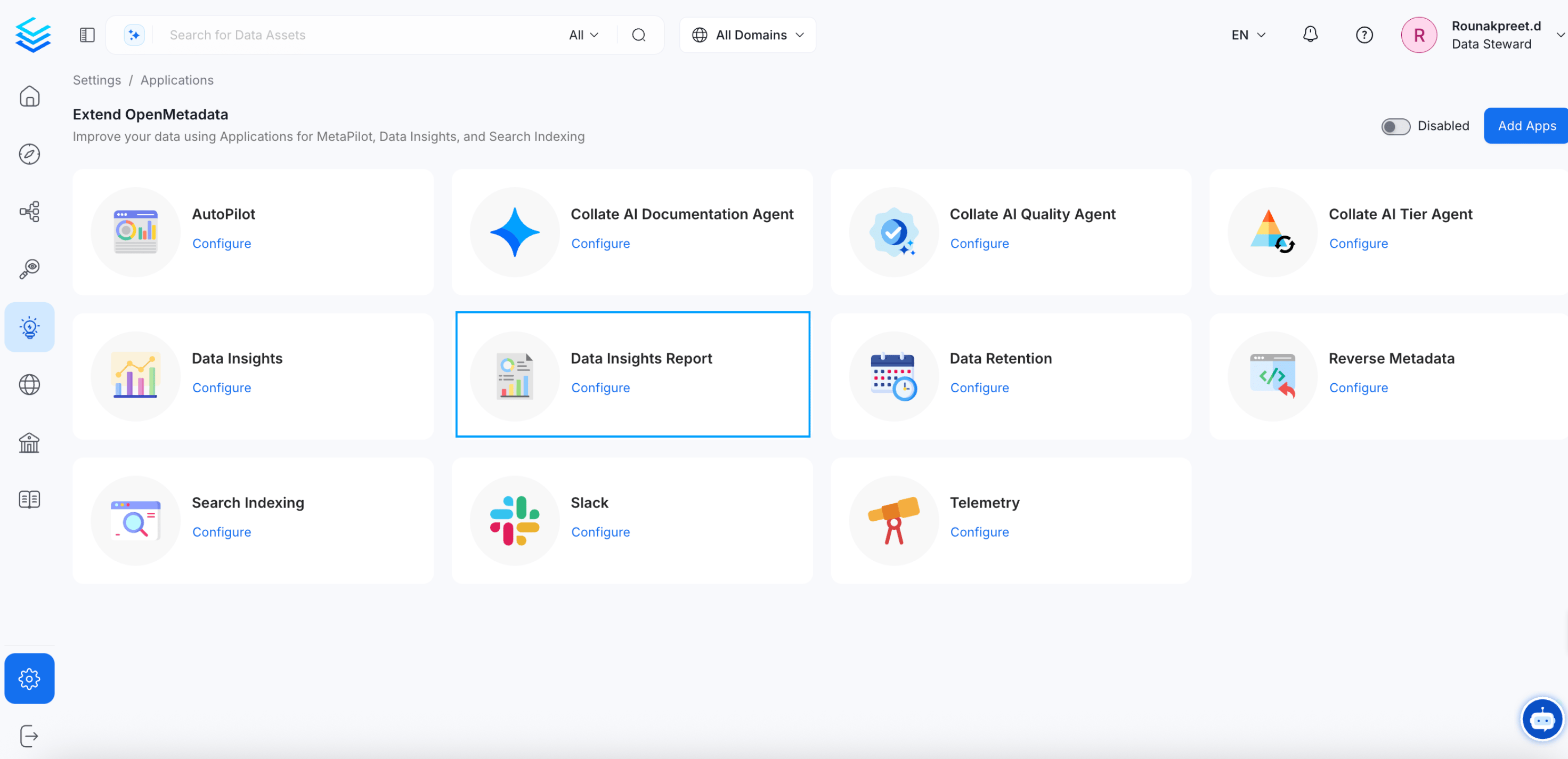 * By clicking on **Configure** You can change the schedule for the data insights report. You can also change who receives the report (Admins/Teams). You can also view the **History** on when the report was last sent.
 Improve your data culture for data-driven decision making.